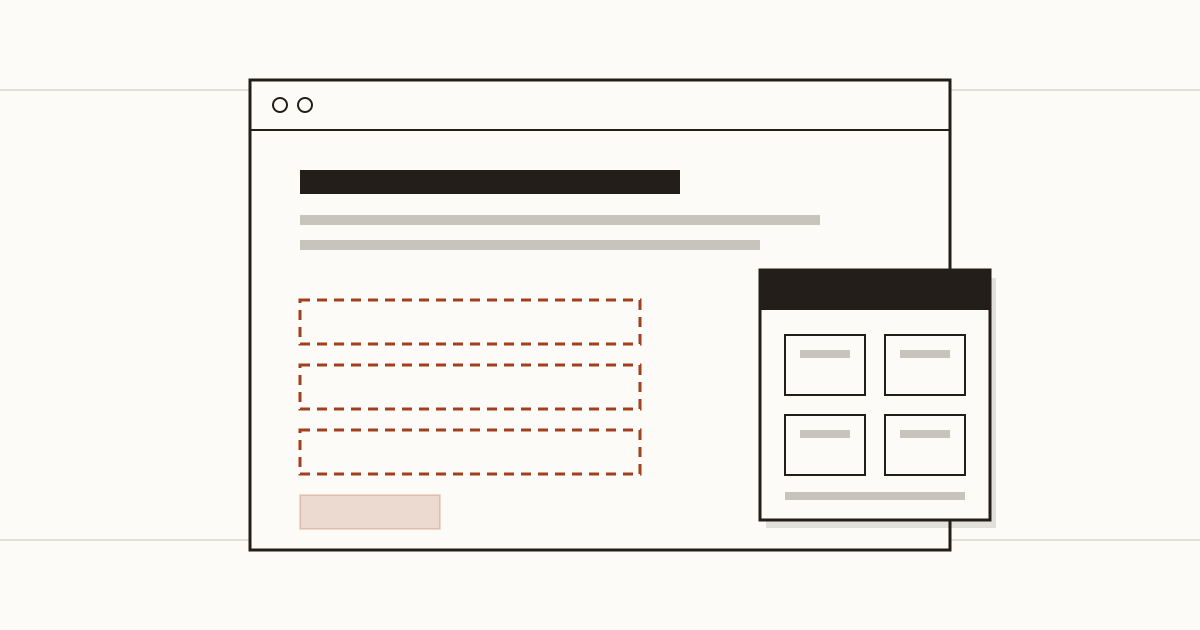
Picture a physiotherapy clinic that rebuilt its booking site. The web designer added a small round icon in the corner, said it "takes care of accessibility", and the owner paid the monthly fee without a second thought. A year on, a blind patient still can't book an appointment, because the booking form has no labels and the toolbar didn't change that. At Cents Security we find these toolbars on small business sites more often than you'd guess, and our short answer to the question is no: a toolbar sits on top of the problems and leaves every one of them in place.
What an accessibility overlay is
An accessibility overlay is a script your site loads from another company. When a visitor opens the page, it draws a toolbar with buttons for bigger text and higher contrast, and it tries to patch the page in the visitor's browser: guessing a description for a picture, adding a name to a button it thinks is unnamed.
It's sold as the fast route to compliance, often with a promise that the site will meet WCAG within days. The pitch is attractive to a busy owner: one line of code, a monthly fee, and the job looks done. That promise is the part we'd question. The page your developer built doesn't change, so every barrier in it is still there for anyone the patch misses. If you're not sure whether your site has one (designers sometimes install it without mentioning it), you can check whether your site loads an overlay in a few seconds.
What it does not fix
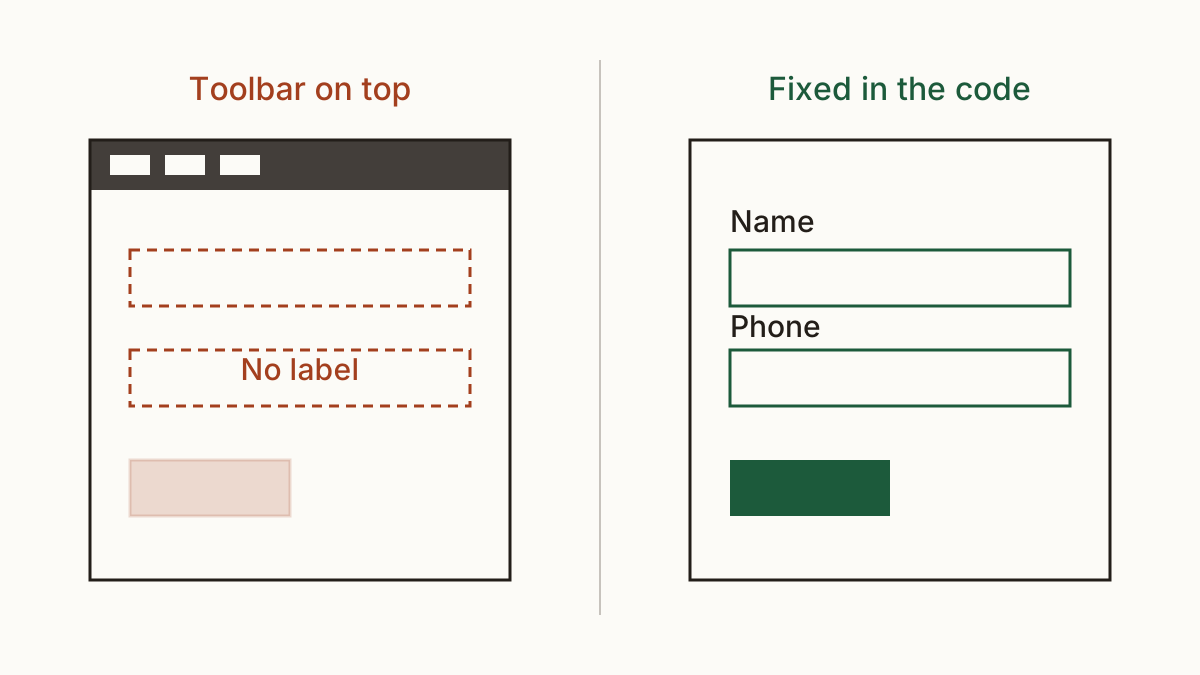
The barriers that shut people out live in the code. A contact form whose fields have no labels leaves a blind visitor guessing which box wants the phone number. A menu button with no name is read out as "button", nothing more. Product photos without alt text are silent.
And keyboard traps are the worst of the lot. Someone who can't use a mouse tabs into a pop-up and can't tab out again, so the visit ends there.
An overlay can try to guess its way around some of this, but a guess about what a picture shows is often wrong, and a script running after the page loads can't restructure a form that was built badly. Our rule of thumb: if the problem is in the HTML, the fix is in the HTML.
Why disabled visitors often turn it off
People who rely on assistive technology already have it set up the way they like. A screen reader user has their own voice settings and shortcuts, learned over years. Someone with low vision zooms with the browser or the operating system. A toolbar that adds a second set of controls doesn't help them. Sometimes it gets in the way. It can announce itself on every page, or fight with the settings the visitor already chose.
That's why the Overlay Fact Sheet, an open statement signed by accessibility practitioners and disabled users, asks site owners not to rely on these products. We take their view seriously, because they're the people the toolbar claims to serve.
What it means for your legal exposure
In the UK, the Equality Act 2010 expects a business that serves the public to make reasonable adjustments so disabled people aren't put at a substantial disadvantage. For many small firms the website is where that service starts, with a booking or an order. We don't give legal advice, and the official guidance on GOV.UK is where you should check the current position. Our article on what UK law asks of a small business website walks through it in plain words.
What we can say is that a widget isn't a defence. Businesses in the United States that had an overlay installed have still been sued over the barriers underneath it. And a toolbar can look like you knew about the problem and chose a shortcut, which isn't the story you want to tell.
What to do instead
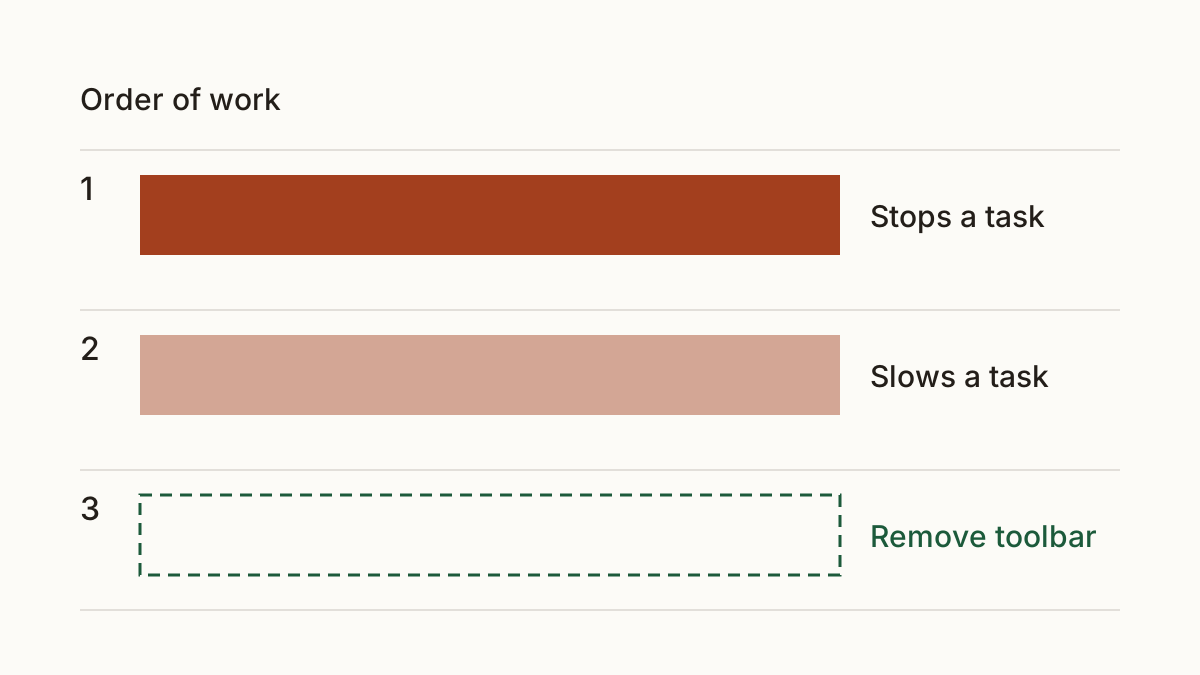
Fix the barriers in the order of who they shut out. Start with anything that stops a task outright, like a form a screen reader can't fill in or a checkout you can't finish by keyboard. That's the order we use when we rank findings ourselves. Then the things that make a task slow, such as missing alt text and headings in the wrong order.
Your web developer does this. On a small site many of the fixes sit in a template every page shares, so one change can clear the same barrier everywhere. Send them the list of barriers, not a request to "make it accessible". Ask them to test each fix with a keyboard and a free screen reader before they call it done, because that's how your visitors will meet it.
Once the real fixes are in, the honest answer about the toolbar is that it adds nothing your visitors' own tools don't already do. We'd remove it. If you keep paying for an accessibility widget after that, you're paying for a badge, and the badge is the part that can be read against you.
FAQ
Should I remove the widget I already pay for?
Yes, once the barriers it was meant to cover are fixed in the code. Removing the accessibility widget first changes little, because it wasn't fixing them anyway, and a visitor who meets a broken form won't care whether a toolbar was there. Check your contract's notice period before you cancel.
Does an accessibility statement help?
It helps people more than it helps your legal position. A short page saying what doesn't work yet, and how to reach you another way, gives a visitor a route in. Public sector sites must publish one; for a business it's good practice.
How do I find the real barriers on my site?
Start with a keyboard: put the mouse aside and try to book or buy. Then ask your developer for an audit against WCAG, which tests the pages by hand as well as with tools. We'd book that before spending anything else on accessibility.
Check your website at https://www.cents-security.com/ and see what each problem on it costs you.